
Creating a secure and efficient home network is essential in today’s digital age, where reliable internet connectivity fuels both work and leisure. A well-structured home network not only safeguards personal information but also enhances convenience by ensuring stable connections for multiple devices. With the right setup, individuals can enjoy fast streaming, seamless gaming, and secure online transactions without the hassle of connectivity issues.
Understanding the components of a home network is key to optimizing performance and security. This includes selecting the right router, setting up strong passwords, and properly configuring firewall settings. Attention to these details can greatly reduce vulnerabilities and improve user experience throughout the home.
As smart devices become ubiquitous, a robust network is increasingly vital. A secure home network empowers individuals to embrace technology confidently, knowing their data is protected while enjoying the convenience of seamless internet access.
Essential Hardware and Internet Setup
A secure and efficient home network relies on selecting the right hardware and understanding the setup needed for optimal performance. Key components include modems, routers, and the choice between wired and wireless connections, along with various network devices.
Selecting the Right Modem and Router
Choosing the appropriate modem and Wi-Fi router is crucial. The modem connects to the Internet Service Provider (ISP) and can be a standalone unit or combined with a router. It is essential to confirm compatibility with the ISP.
A quality router, especially one with features like dual-band support, improves connectivity for multiple devices. Mesh networks enhance coverage by using multiple devices to eliminate dead zones. Key specifications include:
- WAN Port: Connects to the modem.
- Ethernet Ports: For wired connections.
- Router’s IP Address: Used for configuration.
Understanding Wired vs. Wireless Connections
Wired connections, such as Ethernet cables (preferably Cat6 for higher speeds), offer greater stability and speed compared to wireless. Ethernet provides reliable broadband performance for devices like desktops or gaming consoles.
Wireless connections provide flexibility, with Wi-Fi transmitters enabling access across the home. Utilizing a wireless access point can extend coverage. For a robust setup, placing routers in central locations and avoiding interferences, such as walls or metal objects, is beneficial.
Network Devices and Topologies
A variety of network devices enhance connectivity and performance within a Local Area Network (LAN). Routers manage traffic and direct data between devices. Additional devices could include switches, which expand the number of devices, and access points to extend Wi-Fi coverage.
Common topologies include star and mesh layouts. A star topology involves all devices connected to a single central node, while a mesh network offers multiple paths for signals, enhancing reliability. The choice of topology impacts performance and scalability, so careful consideration is needed based on the home’s layout and device count.
Secure Configuration and Access Controls
Establishing secure configurations and access controls is critical for protecting a home network. This involves using strong passwords, changing default settings, implementing advanced encryption, and managing guest network features.
Configuring Strong Passwords and Usernames
Creating strong passwords significantly enhances network security. A robust password should be at least 12–16 characters long and include a mix of uppercase and lowercase letters, numbers, and symbols.
Example of Strong Passwords:
- Gr3@tH0meN3twork!
- S3cure!C0nn3ction245
Usernames should also be unique. Avoid using easily guessable usernames like “admin” or “user.” Instead, consider using combinations of names and numbers that are not directly associated with personal information.
Changing Default Login Credentials
Most routers come with a default username and password, often documented in the user manual. These can be easily exploited by unauthorized users.
To enhance security:
- Access the router’s settings through a web interface.
- Locate the section for changing the admin credentials.
- Choose a unique username and create a strong password.
Failing to change these settings can leave the network vulnerable to attacks.
Setting Up WPA3 Encryption
WPA3 encryption is the most advanced security protocol for wireless networks. It provides a higher level of security than its predecessor, WPA2.
To enable WPA3, follow these steps:
- Log in to your router settings.
- Find the wireless security settings.
- Select WPA3 as the encryption type.
Using WPA3 helps protect against unauthorized access and ensures better security for all connected devices.
Implementing Guest Network Features
Guest networks allow visitors to access the internet without compromising the main network’s security. This separation prevents unauthorized access to shared devices and data.
To set up a guest network:
- Access your router’s configuration page.
- Locate the guest network section.
- Enable guest access and set a strong, unique Wi-Fi password.
Regularly update this password to maintain security and restrict guests to the internet only, ensuring network integrity.
Optimizing Connectivity and Performance
To enhance both connectivity and performance in a home network, the strategic placement of hardware is crucial. This section explores effective router positioning, maximizing signal range, and balancing wired and wireless connections.
Positioning Your Router and Antennas
The router’s location significantly impacts network performance. It should be placed in a central area of the home, ideally elevated on a shelf or table to maximize coverage. Walls and large furniture can obstruct signals, so keeping the router clear of these obstacles is vital.
Adjust antennas for optimal direction. If the router has external antennas, orient them perpendicular to the floor to enhance horizontal coverage. Some routers also have adjustable antennas, which can be tilted for better signal distribution.
Maximizing Signal Range and Reducing Interference
Signal range can be maximized by using a dual-band router that operates at 2.4 GHz and 5 GHz. The 2.4 GHz band offers longer range, while the 5 GHz band provides faster speeds. Devices should be configured to utilize both bands effectively.
Interference from other devices can disrupt connectivity. Keep the router away from microwaves, cordless phones, and Bluetooth devices. Using LED lights with limited interference and ensuring compatibility with the router can also improve performance.
Balancing Wired and Wireless Networks
Wired connections are more stable and faster compared to their wireless counterparts. For devices requiring high bandwidth, such as gaming consoles or PCs, using Ethernet cables is recommended. This setup minimizes lag and ensures a consistent internet connection.
Wireless networks provide flexibility for mobile devices. It is beneficial to keep wireless connections for smartphones, tablets, and smart home devices. Balancing these networks optimizes performance, as critical devices maintain a wired connection while less critical devices operate wirelessly.
Advanced Security and Privacy Practices
Implementing advanced security and privacy practices is essential for a robust home network. The following methods enhance protection against unauthorized access and ensure user privacy while browsing the internet.
Enabling Firewall and Web Filtering
A firewall serves as a critical barrier between the home network and external threats. It monitors incoming and outgoing traffic based on predetermined security rules. Most routers come equipped with built-in firewalls, which can be accessed through a web-based dashboard.
Web filtering provides an additional layer of security by blocking access to harmful or inappropriate websites. Users can configure filtering settings to restrict access based on categories like malware sites or adult content. To maximize effectiveness, regularly update firewall rules and filter lists, adjusting them according to the evolving security landscape.
Regularly Updating Firmware
Firmware controls the hardware functionality of the network devices. Keeping it updated is crucial for maintaining security and improving performance. Manufacturers release firmware updates to patch vulnerabilities and enhance features.
Users should set reminders to check for updates regularly or enable automatic updates through the mobile app or web dashboard. Each firmware update usually comes with release notes detailing fixes and improvements. Regular updates can significantly reduce the risk of exploitation by cyber threats.
Using Virtual Private Networks (VPNs)
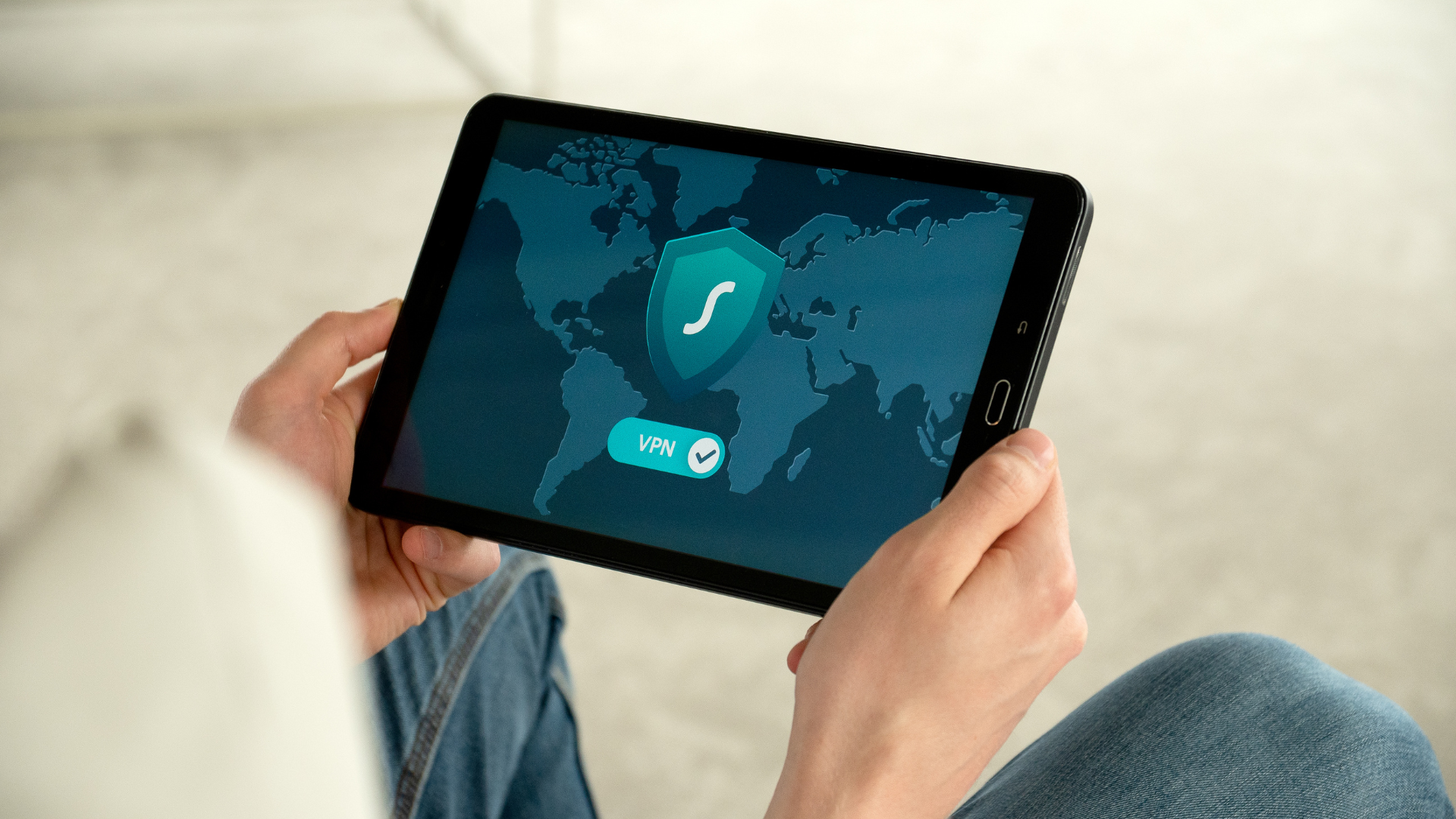
A Virtual Private Network (VPN) encrypts the internet connection, making it difficult for prying eyes to monitor online activities. By masking the user’s WAN IP address, a VPN ensures that sensitive information remains secure from potential intruders.
Selecting a reputable VPN provider is key. Many offer user-friendly mobile apps and desktop applications for easy setup. For optimal privacy, it’s essential to choose a VPN that does not log user activities and provides strong encryption protocols.
Managing Dynamic Host Configuration Protocol (DHCP)
Dynamic Host Configuration Protocol (DHCP) automates the assignment of IP addresses within a network. Proper management of DHCP settings is important to prevent unauthorized access. Users can restrict DHCP lease duration and limit the number of devices that can connect.
Configuring static IP addresses for essential devices, such as security cameras or servers, can enhance control over the network. Accessing the router’s DHCP settings through the web dashboard allows users to view connected devices, ensuring no unauthorized device obtains a valid IP address.